
The Drake party-video trend

Burning Bridges AI Video Generator

Turn one photo into a Drake-inspired party video with you at the center of the room.

  • One photo
  • No prompt needed
  • Original song included

Photo-to-video · Preset party scene

Your photo.Your turn to host.

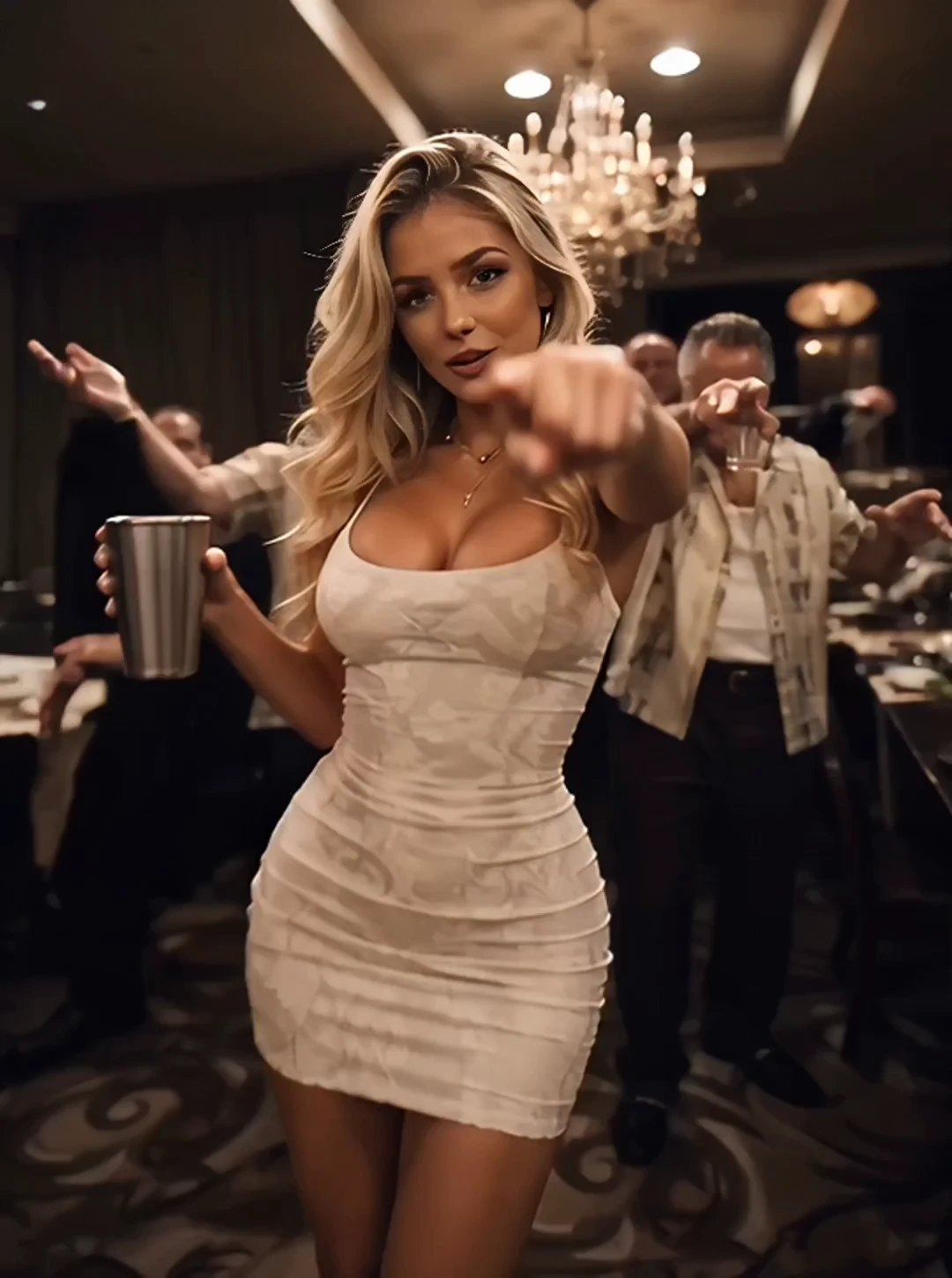
White Dress

What Is the Burning Bridges AI Trend?

Burning Bridges AI is Zombie Trend’s photo-to-video generator for the Drake-inspired party-video trend. It is designed to turn 1 portrait into a party scene with the original song included, without a written prompt or reference clip. Required credits vary by video quality and are shown on the generation button before you start.

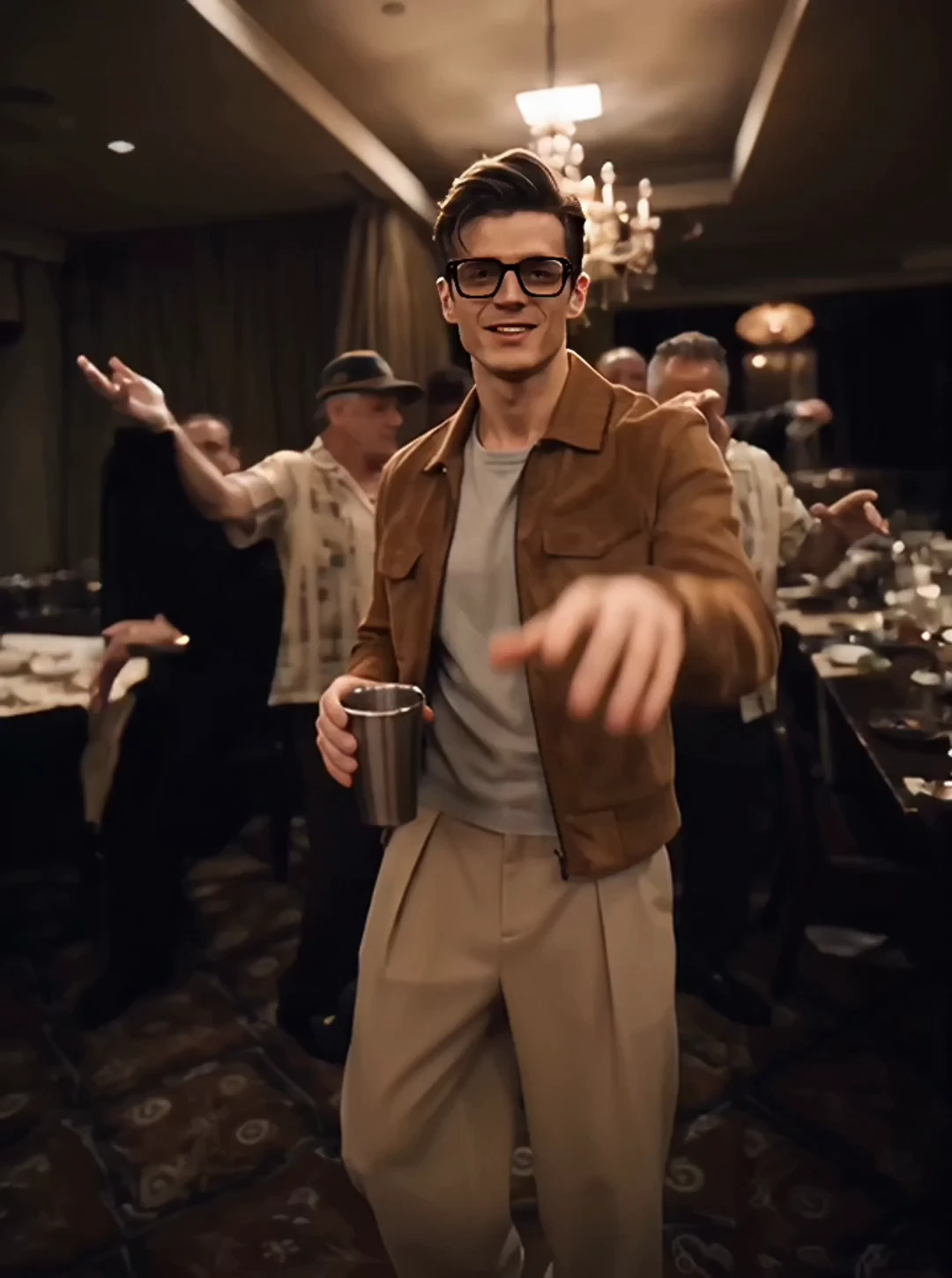
The trend puts a new lead into a recognizable party scene: warm chandeliers, a crowded room, a cup in hand, and a camera that moves close to the performer. The preset template handles that setting, so you do not need to film a performance.

Looking for the two-person zombie story instead? Make an AI zombie trend video.

By · Updated

Burning Bridges AI at a glance
FeatureDetails
Photo input1 clear portrait of 1 person.
Written prompts0 prompts to write; the party scene is preset.
Reference footage0 reference clips to upload or performances to film.
AudioThe original Burning Bridges song is included in the exported video.
PricePaid credits. The requirement varies by video quality and is displayed on the generation button before you start.
Video qualityThe video quality you select determines the credit requirement.

Who’s Taking Over the Party?

Choose a familiar face, a birthday portrait, or a costume photo to make the scene your own.

Your Own Party Cameo

Your Own Party Cameo

For creators joining the trend

Input: Your portrait · Output: Personal party video

You have seen the clip in your feed. Now make a version people recognize as yours, using a clear photo you already have instead of filming the whole scene.

Photo idea: A well-lit portrait of yourself, with your face and shoulders clearly visible.

Start with: The preset party template and one personal photo.

Use My Photo
A Birthday Spotlight

A Birthday Spotlight

For a friend’s birthday or a group-chat surprise

Input: One person’s portrait · Output: A clip to share

Make the person celebrating the lead at the party. Use a photo they have agreed to share, then add your own birthday message when you send or post the finished video.

Photo idea: One clear, recent photo of the birthday person, with nobody else in the frame.

Start with: A single-person photo; the birthday caption is yours to add afterward.

Make a Birthday Version
A Costume Cameo

A Costume Cameo

For cosplay and dress-up creators

Input: Your costume portrait · Output: A party-scene experiment

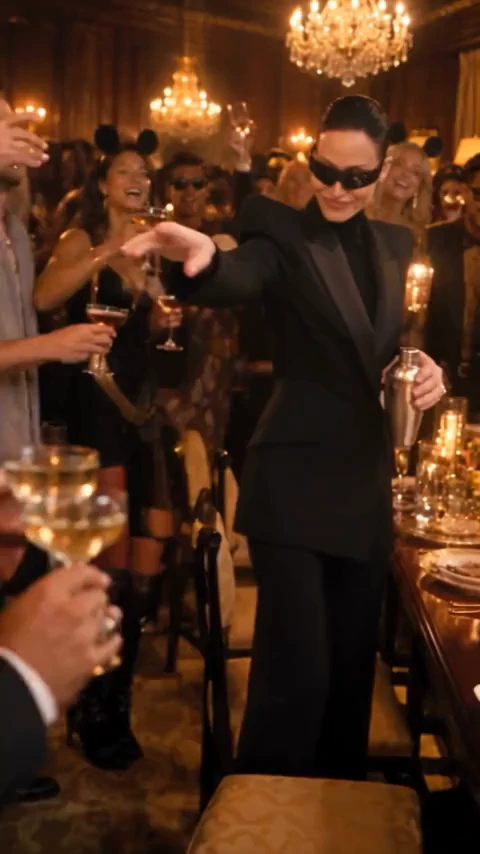
You already have the costume photo. Try it in an unexpected setting and see how the look translates into the party scene. Keep your face visible, and review how the generator handles costume details.

Photo idea: A portrait of yourself in costume, without a mask or anything covering your face.

Start with: A clear human portrait, then check the generated result before sharing.

Try My Costume Photo
How It Works

How to Make a Burning Bridges AI Video

Create your video in 3 steps: add 1 photo, generate, and download. The template handles the scene and includes the original song.

  1. 1

    Add Your Photo

    Upload a clear photo with one person in the frame. Even lighting and an unobstructed face give the generator more useful detail to work with.

  2. 2

    Generate Your Party Video

    Choose your video quality and check the required credits on the generation button before starting. The credit requirement varies by quality. No prompt or reference video is needed.

  3. 3

    Watch, Download, and Share

    Play your finished video with sound and check the result. Download your clip with the original song included, then add your caption when you share it.

Photo tip: Choose a close, sharp portrait over a dark group photo where your face is small.

Sharing tip: TikTok’s official guide says that after recording or uploading, you can add effects, edit text, and include stickers or emojis. A birthday message can be added at that stage. See TikTok Help Center: Editing, posting, and deleting.

A Party Template That Handles the Setup

  • One Photo Is the Starting Point

    A single-person portrait is all you need to upload. No additional footage or performance recording is required.

  • No Prompt to Get Right

    The scene is already set up. You can start without writing camera directions, describing every gesture, or testing a long prompt.

  • The Original Song Comes With It

    Your exported video includes the original track. You do not need to attach the song separately just to hear your finished clip.

  • The Party Scene Is Already Set

    This tool focuses on the Burning Bridges party scene. Use it when you want your own version of the trend, with the setting already chosen.

  • A File You Can Keep

    Download the finished video to replay, share in a chat, or use in a social post. Add your own caption or further edits if you want to.

  • Pay With Credits

    Video generation uses paid credits. The credit requirement varies by video quality. Check the amount shown on the generation button for your selection before starting.

Burning Bridges AI FAQ

Yes. Upload 1 clear photo, choose your preferred video quality, and generate your Burning Bridges AI party video. No prompt or reference clip is needed. Check the credit requirement shown on the generation button before you start.


No. Burning Bridges AI uses paid credits. The number of credits required depends on the video quality you select. The generation button shows the credit requirement for your current selection before you start. Visit pricing for credit purchase options.


Yes. Your exported Burning Bridges AI video includes the original Burning Bridges song, so you do not need to add the track separately. Play the sample videos with sound to preview the audio.


No. Burning Bridges AI uses 1 photo and a preset party template. You do not need to write a prompt or upload a reference video.


Use a sharp photo of one person with their face clearly visible. Even lighting and a closer view are useful; avoid dark group shots, heavy filters, sunglasses, and anything covering the face.


Your photo guides the person’s appearance, but AI generation can change facial details, clothing, or movement. A clear portrait helps; review the whole clip before sharing it rather than judging only the first frame.


Yes. Download your finished video and upload it to TikTok or Instagram Reels. You can add a caption or make further edits on your chosen platform.


No. Burning Bridges AI creates the party clip from 1 photo with the original song included, without requiring CapCut. An editor is optional for captions, combined clips, or further changes.


No. The result is a new AI-generated video based on your photo and the party-scene trend, with the original song included. It is not a download of the original music video.


Take Your Place in the Party

Choose the photo your friends will recognize. Turn it into your own party clip, with the original song already included.

One photo · No prompt needed · Original song included

Make My Party Video

Paid generation. Credits are required to create a video.

Burning Bridges AI Video Generator from One Photo